Apple has officially released the first iOS 27 Developer Beta, and like a lot of Apple fans, I couldn’t resist installing it the moment it became available. Now, before anyone rushes to download it, I need to be upfront about something.
This is beta software in the truest sense of the word. It’s unfinished. It’s buggy. Battery life takes a hit. Some features don’t work properly. A few things crash unexpectedly. And if you’re thinking about installing it on the iPhone you rely on every day, I’d strongly suggest thinking twice.
I went ahead and installed it anyway because, well, somebody has to find out what actually works and what doesn’t. After spending some time with iOS 27, here’s what I found.
First Things First: Back Up Your iPhone
Before touching anything, I made a full backup of my device. And I don’t mean an iCloud backup.
If you’re planning to install a developer beta, do yourself a favor and create a complete backup on a Mac or PC. Connect your iPhone with a cable and save everything locally. If something goes wrong—and with early betas, things absolutely can go wrong—you’ll be glad you did.
I know backing up isn’t the exciting part, but it’s probably the most important step in this entire process.
Getting the Developer Beta Installed
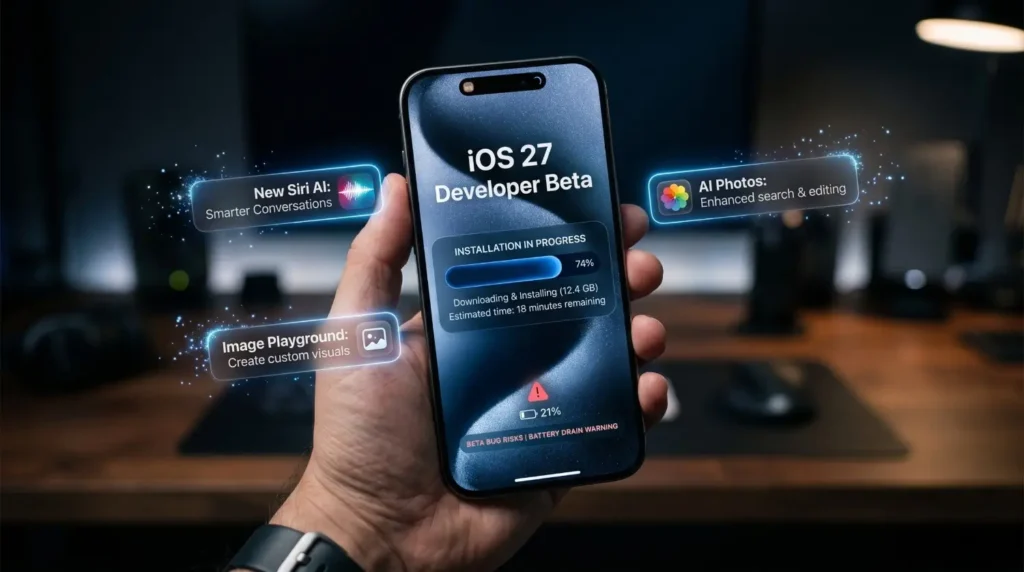
The installation process itself was surprisingly straightforward. After registering for Apple’s developer program using my Apple ID, the beta option appeared inside Software Update settings. From there it was simply a matter of selecting the iOS 27 Developer Beta and starting the download.
The download took longer than expected, which wasn’t surprising considering millions of people were likely hammering Apple’s servers at the same time.
Eventually the update installed, my iPhone restarted, and I was greeted by the familiar “Your iPhone has been updated” screen. That’s when things started getting interesting.
The First Setup Experience Feels Different
One of the first things iOS 27 introduced was a series of setup screens highlighting Apple’s new AI-powered features. Apple clearly wants users to notice them immediately.
The new Image Playground feature appeared during setup, along with notification summaries and several customization options. What caught my attention wasn’t necessarily the AI stuff right away. It was the updated visual controls.
Apple is giving users more freedom to adjust the Liquid Glass effect than I expected. I spent a few minutes dragging sliders back and forth just to see how dramatic the changes could get. Some settings created a much heavier blur effect, while others kept things cleaner and easier to read.
It’s a small addition, but I appreciated having the choice rather than being stuck with whatever Apple decided looked best.
The Siri Situation Is… Complicated
Let’s talk about the feature everyone is waiting for. The new AI-powered Siri.
Or at least the promise of it. Unfortunately, after installing iOS 27, I quickly discovered that access isn’t immediate. I joined the waitlist and then… nothing. No new Siri. No AI assistant. No fancy demonstrations. Just a waiting screen.
Honestly, that’s probably going to frustrate a lot of people who install the beta expecting instant access. At this stage, it feels like Siri is more of a preview of what’s coming than something most users can actually experience today. Apple clearly isn’t ready to open the floodgates yet.
Performance Isn’t Better—At Least Not Right Now
Apple has talked about performance improvements, but my early experience didn’t really support that claim. I ran Geekbench shortly after installation, and the results were actually lower than I expected.
That’s not necessarily alarming. In fact, it’s pretty normal for an early beta. What stood out wasn’t the benchmark numbers themselves. It was how inconsistent the system felt at times. Some animations felt incredibly smooth, while other moments introduced little stutters that simply don’t exist on stable releases.
That’s exactly why I always caution people about installing the first developer beta. This software still has months of optimization ahead of it.
Image Playground Was Surprisingly Fun

The feature I ended up spending the most time with wasn’t Siri. It was Image Playground. I started with a simple prompt: a cat holding a birthday cake. The results appeared quickly and honestly looked pretty impressive.
Then I began experimenting. I asked it to make the cake larger and add candles. That worked. Then I tried turning the cat into a black-and-white tuxedo cat. At first, the system completely failed. Then after switching styles and trying again, it suddenly understood exactly what I meant.
That pretty much sums up the beta experience. One minute you’re impressed. The next minute you’re staring at an error message. Then somehow it works perfectly. When it does work, though, it’s genuinely entertaining. I can see people spending a lot of time with this feature once Apple smooths out the rough edges.
Also Read: Redmi Note 15 Review: Xiaomi Finally Fixed Everything?
Apple’s AI Photo Editing Has Potential
The Photos app received some of the most interesting updates. I tested the new Cleanup tool on a photo that had distracting objects in the background. It removed them surprisingly well. Not perfectly.
But well enough that most people probably wouldn’t notice. The new Extend feature was a different story. When I tried aggressively expanding an image, it repeatedly failed. Error messages popped up more often than successful results.
After reducing the expansion area, it finally worked. That seems to be a recurring theme with iOS 27 right now: ambitious features that work best when you don’t push them too hard. The most fascinating tool was Reframe.
I used it on a photo where my face was angled awkwardly. At first, the AI appeared to remove my arm entirely. For a few seconds, I genuinely thought Apple had invented the world’s first accidental amputation feature.
Then after another attempt, the arm magically returned. The final image wasn’t perfect. My hair looked slightly different and certain details felt a little artificial. Still, considering what the software was trying to generate, the result was impressive. Not flawless. But impressive.
Apple Maps Quietly Stole the Show
One thing I wasn’t expecting was how much time I’d spend exploring Maps. I loaded up central London and started navigating around some familiar landmarks. The updated 3D rendering immediately stood out. The detail around Big Ben, the Houses of Parliament, Buckingham Palace, and the surrounding areas looked sharper and more refined than I remembered.
What impressed me wasn’t just the visuals. It was how fluid everything felt. Even while rotating, zooming, and moving through the environment, I didn’t encounter the stuttering I saw elsewhere in the beta.
Ironically, one of the most stable experiences in iOS 27 ended up being one of the least talked-about features.
Should You Install iOS 27 Right Now?
For most people? No. And that’s not a criticism of iOS 27. It’s simply the reality of early developer betas. The battery drains faster. Some features don’t work consistently. Performance still needs optimization. And the headline feature – AI powered Siri – isn’t even available immediately for many users.
That doesn’t mean iOS 27 is disappointing. Far from it. What I saw was a foundation. Apple is clearly building toward something much bigger over the next few months. Features like Image Playground, AI photo editing, and the redesigned interface show genuine promise.
The problem is that promise hasn’t fully turned into a polished experience yet. If you’re a developer, a tech enthusiast, or someone who enjoys testing unfinished software, you’ll probably have fun exploring it. If you simply want your iPhone to work reliably every day, I’d wait.
The public beta will be better. The final release will be much better. And by then, hopefully, Siri will finally be ready to show us what all the hype is about.